
Download Easy Backup – Free Secure Automated Backup Tool for Windows, Mac & Linux
Overview
Easy Backup is a completely free computer utility from Emjysoft that streamlines and automates the usually time‑consuming backup process. Designed for both home users and small‑business professionals, the app lets you create automatic copies of all important files and folders on your desktop, laptop, or workstation. Whether you store the backups on a removable USB drive, a separate partition, or a cloud storage service, Easy Backup ensures that a reliable copy is always available.
Security is baked in – the program integrates with BitLocker and TrueCrypt, allowing you to encrypt any backup placed on an external hard drive or USB stick. The interface is intentionally simple, guiding you through a step‑by‑step wizard that can be used in either an “easy” mode for beginners or an “advanced” mode for power users. Once a backup session is configured, you can select from two distinct backup modes: Full, which copies every file and folder, and Intelligent, which keeps recently deleted items accessible for a set period while only adding newly created or modified files.
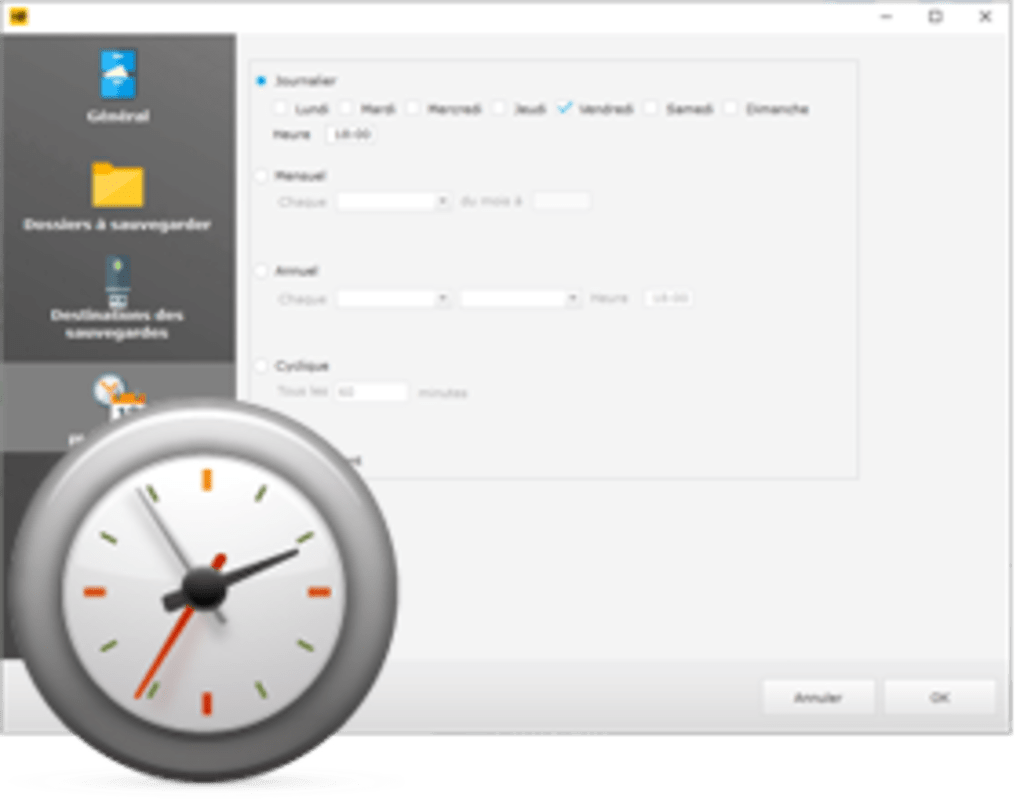
Scheduling is flexible, letting you run backups daily, weekly, monthly, yearly, or on a custom cyclical basis, all without manual intervention. Running quietly in the background, Easy Backup never interferes with your current tasks, making it an unobtrusive guardian of your data. In the event of a system crash, hardware failure, or accidental deletion, the software can quickly restore your files, giving you peace of mind that critical documents, photos, and project files are never truly lost.
Core Features that Set Easy Backup Apart
- Completely Free: No hidden fees, subscription, or trial period – all features are available at zero cost.
- Dual Backup Modes: Choose between Full backup for a complete snapshot or Intelligent backup that only syncs new and changed files while preserving deleted items for a configurable retention period.
- Automatic Scheduling: Set daily, weekly, monthly, yearly, or custom cyclical schedules to run backups without lifting a finger.
- Encryption Support: Integrated with BitLocker and TrueCrypt to encrypt backups stored on external drives, USB sticks, or network locations.
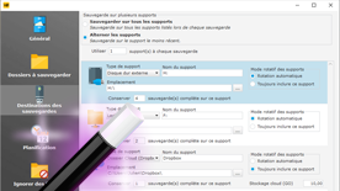
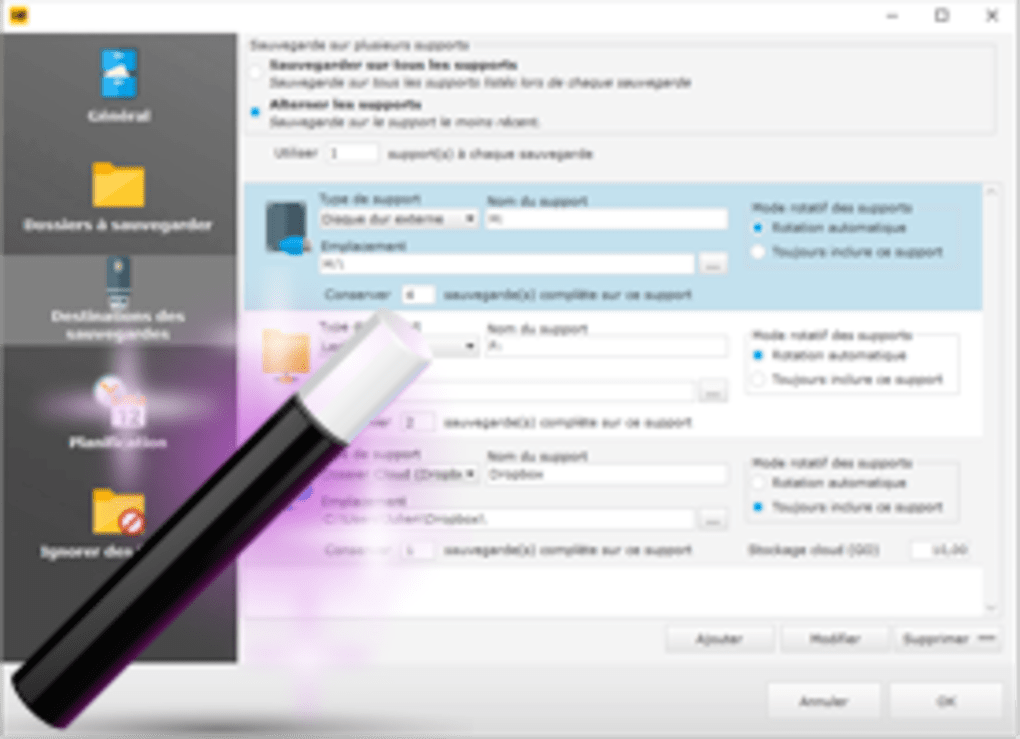
- Multi‑Destination Flexibility: Save backups to local drives, network shares, removable media, or cloud storage providers such as Google Drive, Dropbox, and OneDrive.
- Wizard‑Driven Setup: An intuitive tutorial wizard guides users through session creation, source selection, destination configuration, and schedule planning.
- Background Operation: Runs silently in the system tray, consuming minimal resources and never disrupting active work.
- Version Retention: Retains multiple versions of files, allowing you to roll back to previous states if needed.
- Cross‑Platform Compatibility: Works on Windows 10/11, macOS Catalina and later, and major Linux distributions.
- Detailed Logging & Reporting: Generates clear logs for each backup session, helping you verify success and troubleshoot issues quickly.
Installation & Usage – Step‑by‑Step Guide
Downloading and Installing Easy Backup
To begin, visit the official Emjysoft website and click the Download Easy Backup button. The installer is a lightweight .exe for Windows, a .dmg for macOS, and a .deb or .rpm package for Linux. Once the file is downloaded, run the installer and follow the on‑screen prompts. The installation wizard asks for basic preferences such as creating a desktop shortcut and enabling the program to start automatically with the operating system. After the process completes, launch Easy Backup from the Start menu (Windows), Applications folder (macOS), or your preferred application launcher (Linux).
Creating Your First Backup Session
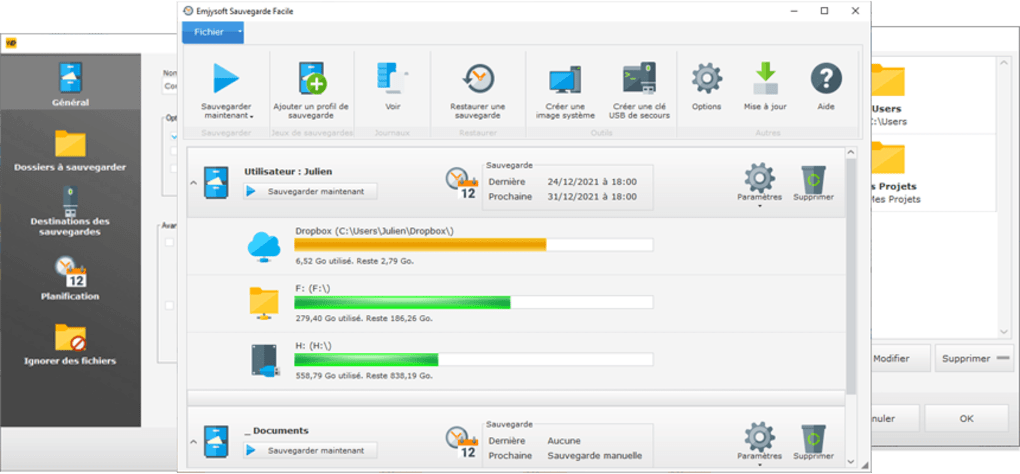
The moment you open the application, you’ll be greeted by a clean dashboard offering two pathways: Easy Mode for a quick setup or Advanced Mode for granular control. In Easy Mode, simply select the folders you want to protect, choose a destination (e.g., an external USB drive), and pick a schedule. The wizard automatically defaults to Intelligent backup, which is ideal for most users.
In Advanced Mode, you can name the session, set a custom retention period for deleted items, define file type filters, and choose between Full or Intelligent backup modes. After configuring these options, click Save Session. The program will now appear in the session list, ready to run according to your schedule.
Running Backups and Restoring Files
Backups can be triggered manually by selecting a session and clicking Run Now, or they will run automatically based on your defined schedule. While a backup is in progress, a small progress window displays the number of files processed, total data transferred, and estimated time remaining. Upon completion, Easy Backup writes a log entry summarizing the operation. To restore files, navigate to the Restore tab, select the desired backup session, choose a restore point (e.g., the latest or a specific date), and specify the destination folder where the files should be recovered. The restoration process mirrors the backup speed, ensuring you get your data back quickly and safely.
Troubleshooting Common Issues
If a backup fails, the log file will highlight the error—common issues include insufficient disk space on the destination drive, network connectivity problems for cloud destinations, or permission errors on protected system folders. The built‑in help center provides step‑by‑step solutions, and the community forum is an active place for user‑generated tips. Updating Easy Backup is simple: the application checks for new versions on launch and prompts you to install the latest update, ensuring you always have the newest features and security patches.
Compatibility, Pros & Cons, and Frequently Asked Questions
Operating System Compatibility
Easy Backup is designed to run on the most popular desktop operating systems. Officially supported platforms include:
- Windows 10 and Windows 11 (both 64‑bit)
- macOS Catalina (10.15) and later versions
- Linux distributions such as Ubuntu 20.04+, Fedora 33+, and Debian 10+
Each version is optimized for its respective OS, using native APIs for file handling and encryption. The Linux build is provided as both DEB and RPM packages, making installation straightforward on Debian‑based and Red‑Hat‑based systems.
Pros and Cons
- Pros:
- Free with no hidden costs or ads.
- Highly configurable backup schedules.
- Built‑in encryption via BitLocker and TrueCrypt.
- Lightweight and runs silently in the background.
- Supports multiple destinations, including cloud services.
- User‑friendly wizard for beginners.
- Detailed logs and versioning for easy restoration.
- Cons:
- No built‑in remote management dashboard.
- Advanced features (e.g., differential backups) are limited to Intelligent mode.
- Cloud integration requires separate API keys from the storage provider.
- No mobile app companion for iOS or Android.
FAQ – Your Questions Answered
Is Easy Backup really free, or are there hidden fees?
Yes, Easy Backup is completely free. There are no subscription fees, trial periods, or hidden charges. All features, including encryption and cloud support, are available at no cost.
Can I use Easy Backup to back up my entire system, including the operating system?
Easy Backup focuses on user files and folders. While you can select the entire C: drive on Windows or the root directory on macOS/Linux, the software does not create a bootable system image. For full system imaging, a dedicated imaging tool is recommended.
How does the Intelligent backup mode handle deleted files?
Intelligent mode retains deleted items for a configurable retention period (default 30 days). After the period expires, those files are permanently removed from the backup set, helping you save storage space while still providing a safety net for accidental deletions.
Do I need separate accounts for BitLocker or TrueCrypt integration?
No additional accounts are required. Easy Backup leverages the encryption capabilities already present in Windows (BitLocker) or the installed TrueCrypt software. You simply enable encryption for the chosen destination within the backup session settings.
Can I back up to cloud services like Google Drive or Dropbox?
Yes. Easy Backup supports major cloud providers. After selecting a cloud destination, you’ll need to provide an API key or OAuth token from the respective service. The software then treats the cloud storage as another backup target, applying the same scheduling and encryption options.
Easy Backup delivers on its promise of a simple, secure, and completely free backup solution. The dual-mode approach, intuitive wizard, and robust encryption make it an excellent choice for users who want reliable protection without a steep learning curve.
Conclusion – Secure Your Data Today
In an age where data loss can cost time, money, and peace of mind, Easy Backup stands out as a trustworthy ally. Its blend of user‑friendly design, powerful scheduling, and strong encryption ensures that your important documents, photos, and project files are constantly protected across Windows, macOS, and Linux platforms. Because the software is free, there’s no barrier to getting started—simply download, configure a backup session, and let the app handle the rest.
Whether you’re a student safeguarding lecture notes, a freelancer protecting client deliverables, or a small business owner needing routine backups, Easy Backup offers a flexible, secure, and unobtrusive solution. Don’t wait for a hard‑drive failure to discover that you have no backups. Download Easy Backup now and enjoy automatic, encrypted protection for all your critical data.
Download Easy Backup – Free & Secure






